| Brand | Unbranded |
| Manufacturer | Govee |
| Model Number | 2EC03DE5 |
| Dimmable | Yes |
| Light Bulb Type | LED |
| Lighting Type | Ceiling Lights |
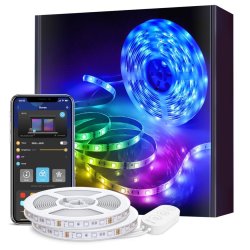
MAIN FEATURES: True Ambiance: Beautiful and vibrant RGB lighting with a full complement of connectivity options. Real Smart: Wi-Fi + Bluetooth for smart app control from anywhere in the world, plus compatibility with the voice assistant of your choice. Smart Voice Control: Works with Alexa and Google Assistant.
Use voice commands for power on/ off, colors, brightness, and modes. Convenient App Control: Manage your lighting from anywhere in the world. Find both simple controls and amazing customization with the free Govee Home App. Music Sync Mode: Using the highly-sensitive built-in mic, your lights can dance along to the beat of your songs (or even your own singing voice).
Ambient Bedroom RGB: Easily place LED Strip Lights under and behind your bed or around your walls for stunning and vivid bedroom visuals that also relax the mind. SPECIFICATIONS Model: H6110 Power Input (Adapter): 100-240V AC 50/60Hz Power Input (Control Box): 12VDC 3A Strip Light Length: 2 * 5m (2 Rolls) Light Color: RGB Beads Density: 30 LEDs/m Connection: Wi-Fi+Bluetooth Control Method: App, Control Box, Voice Control Waterproof: No Installing Your Strip Lights Preparation Before Installing: Unpack the box and check all items listed in the packing list.
Power on the strip lights and check whether they light up. Installing Steps: Wipe the surface to make sure its clean and dry. Peel off the protective film on the tape, stick the strip on and press over it firmly. Reinforce via clips around corners. Peel off the protective film on the control box and stick it on.
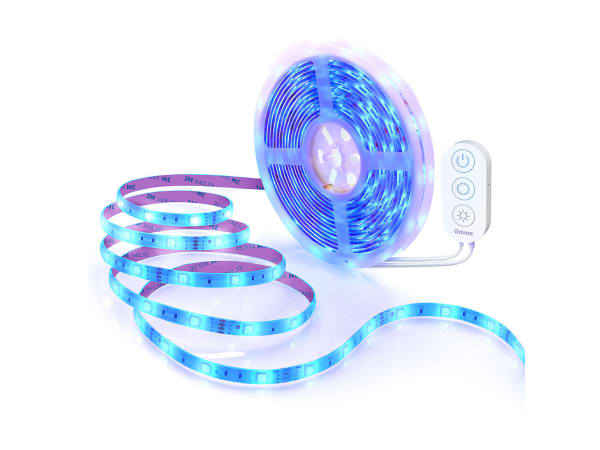
Power on the strip lights and begin using. Controlling with the Control Box: Button: Function On/Off: Turn thelight on/off. Color Changing: Press to cycle tl1rough 9 colors Music Mode: Press to enter music mode. Brightness Adjusting: Press and hold to cycle through the 6 brightness levels Downloading the Govee Home App Download the Govee Home app from App Store (iOS devices) or Google Play (Android devices).
Notice: A smartphone running iOS 9.3 (or above) or Android 4.4 (or above) is needed. Connecting to a Wi-Fi Network Turn on Bluetooth in your mobile phone: Open Govee Home app and tap icon in the top right corner: Select H6110 in the device list Select a 2.4GHz Wi-Fi to connect or skip the setup. Controlling Your Strip Lights with Alexa/Google Assistant Wi-Fi Setting Make sure the strip is connected to Wi-Fi, if not, please follow the steps below to set up Wi-Fi.
Open the app, select the strip light that has been added and tap setting icon in the top right corner. Tap Wi-Fi Setting', select an available Wi-Fi network and enter password. Notice: Only supports 2.4GHz and 802.11 b/g/n Wi-Fi networks. Works with Alexa/Google Assistant Open the app, select the strip light that has been added and tap setting icon in the top right corner.
Tap Using guidance and follow on-screen instructions to complete setup. TROUBLESHOOTING 1. The adhesive tape is not strong enough. Make sure the installation surface is clean and dry. Firmly press over the strip after sticking. Reinforce the installation via more clips and tape. 2. Cannot connect to Bluetooth.
Do not skip Bluetooth connection in the app. Make sure Bluetooth in your mobile phone has been turned on. It may be caused by incompatibility between the phone system and the app.Please change to another mobile phone and connect again. Re-power on the strip and re-turn on Bluetooth in your phone and try again.
Keep the distance between the strip and the phone less than 1m/3.28ft while connecting. Keep obstructions between the strip and the phone as few as possible. 3. The strip doesnt match the same color/Some lamp beads dont light up. Please contact Govee support team in time for return. 4. Cannot connect to Wi-Fi.
Do not skip the Wi-Fi connecting steps in the app. 5GHz network is not supported. Please set the router to 4GHz and then reset it. Connect your phone to Wi-Fi and check whether the network works wel. Make sure you have entered the correct Wi-Fi name and password. Change your Wi-Fi password to a brief one. 8 numbers and letters are suggested.
C
 Related Products
Loading similar products...

Stay informed about the best deals and price drops. Choose which notifications you'd like to receive from PriceCheck.


